
WINDOWS 11 DEBLOAT & HARDENING
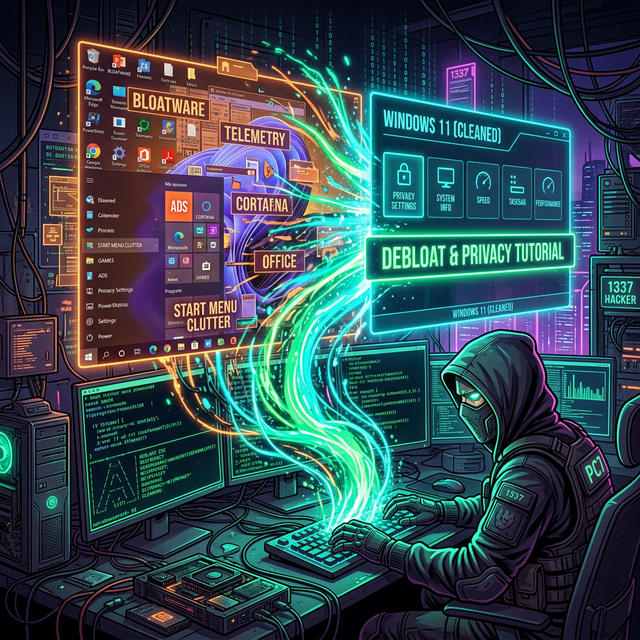
INTRODUCTION
Windows 11 comes with a significant amount of telemetry, ads, and pre-installed bloatware. This guide walks you through stripping it down to the bare essentials for maximum performance and privacy.
PREREQUISITES
- A fresh install of Windows 11 (recommended).
- PowerShell running as Administrator.
INSTRUCTIONS
1. Initial Setup (OOBE)
During installation, select "English (World)" to avoid pre-installed Candy Crush and TikTok. Disconnect from the
internet to force a local account creation (Shift + F10 -> OOBE\BYPASSNRO).
✓ Success Check
You should now be on the desktop with a local account (no Microsoft account required) and no Candy Crush / TikTok pre-installed.
2. PowerShell Debloat Script
We will use the Chris Titus Tech WinUtil, a trusted community tool.
Select "Tweaks" -> "Desktop" -> "Run Tweaks". This disables telemetry, Cortana, and unnecessary services.
3. Group Policy Hardening
Open gpedit.msc and navigate to:
- Computer Config -> Admin Templates -> Windows Components -> Data Collection -> Allow Telemetry (Set to Disabled).
- Computer Config -> Admin Templates -> Windows Components -> Windows Defender Antivirus -> MAPS -> Join Microsoft MAPS (Set to Disabled).
CONCLUSION
Your Windows 11 installation is now significantly lighter. You should see lower RAM usage, fewer background processes, and zero ads in your start menu.
⏪ ROLLBACK PLAN
⚠️ Always create a restore point FIRST
Before running any debloat script or GPO change, open Start →
type "Create a restore point" → select your system drive → click Create.
Name it something like "Pre-Debloat Baseline".
- If a tweak breaks something: Open Settings → System → Recovery → Advanced Startup → Restart Now → Troubleshoot → System Restore → pick the pre-debloat restore point.
- If WinUtil wiped a feature you want back: Re-run
iwr -useb https://christitus.com/win | iexand use the "Apps" tab to reinstall Microsoft Store, Edge, etc. - Nuclear option — fresh reinstall: Microsoft provides a clean Windows 11 ISO at microsoft.com/software-download/windows11.
FAQ / TROUBLESHOOTING
⚠️ Most common issues after debloating
❌ OOBE\BYPASSNRO no longer works on my Windows 11 build
Microsoft disabled the command in Windows 11 24H2 (build 26100). Workarounds:
start with internet connected, then use the start ms-cxh:localonly command from a Command Prompt
during OOBE, or use a known Microsoft account, then immediately remove it and convert to a local account
from Settings → Accounts.
❌ WinUtil says "This app has been blocked by your system administrator"
Some corporate builds and Windows 11 S Mode block running unsigned PowerShell scripts.
Either unlock via Set-ExecutionPolicy Unrestricted -Scope Process -Force in an Admin PowerShell
first, or use a personal/non-S Windows edition.
❌ Windows Update keeps resetting my GPO changes
Known issue. Microsoft re-applies some telemetry settings on major feature updates
(23H2 → 24H2). Re-run your GPO block after each major update. You can defer feature updates with
gpedit.msc → Computer Config → Admin Templates → Windows Components → Windows Update → Windows Update for Business.
❌ Microsoft Store or some apps won't open after debloat
WinUtil's "Remove All MS Apps" option also removes Store dependencies. Fix:
re-run WinUtil, go to the Apps tab, and reinstall
Microsoft.WindowsStore, Microsoft.UI.Xaml, and
Microsoft.WindowsAppRuntime.
❌ Performance actually got worse after WinUtil
Likely cause: you unchecked "Keep Microsoft Store" or removed the
VC++ Runtime app, breaking several other apps. Reinstall via WinUtil's "Apps" tab. Also check
services.msc — some "disabled" services like SysMain actually help on HDD systems.
❌ Defender keeps flagging the script as malware
False positive — the script is open-source on
GitHub. Add an exclusion:
Settings → Privacy & Security → Windows Security → Virus & threat protection → Exclusions → Add.
Only do this if you trust the source code.
❓ Still stuck?
→ ChrisTitusTech Discussions is the most active help channel.